
Supercharge
Elevate your Mac experience
Requires macOS 15+
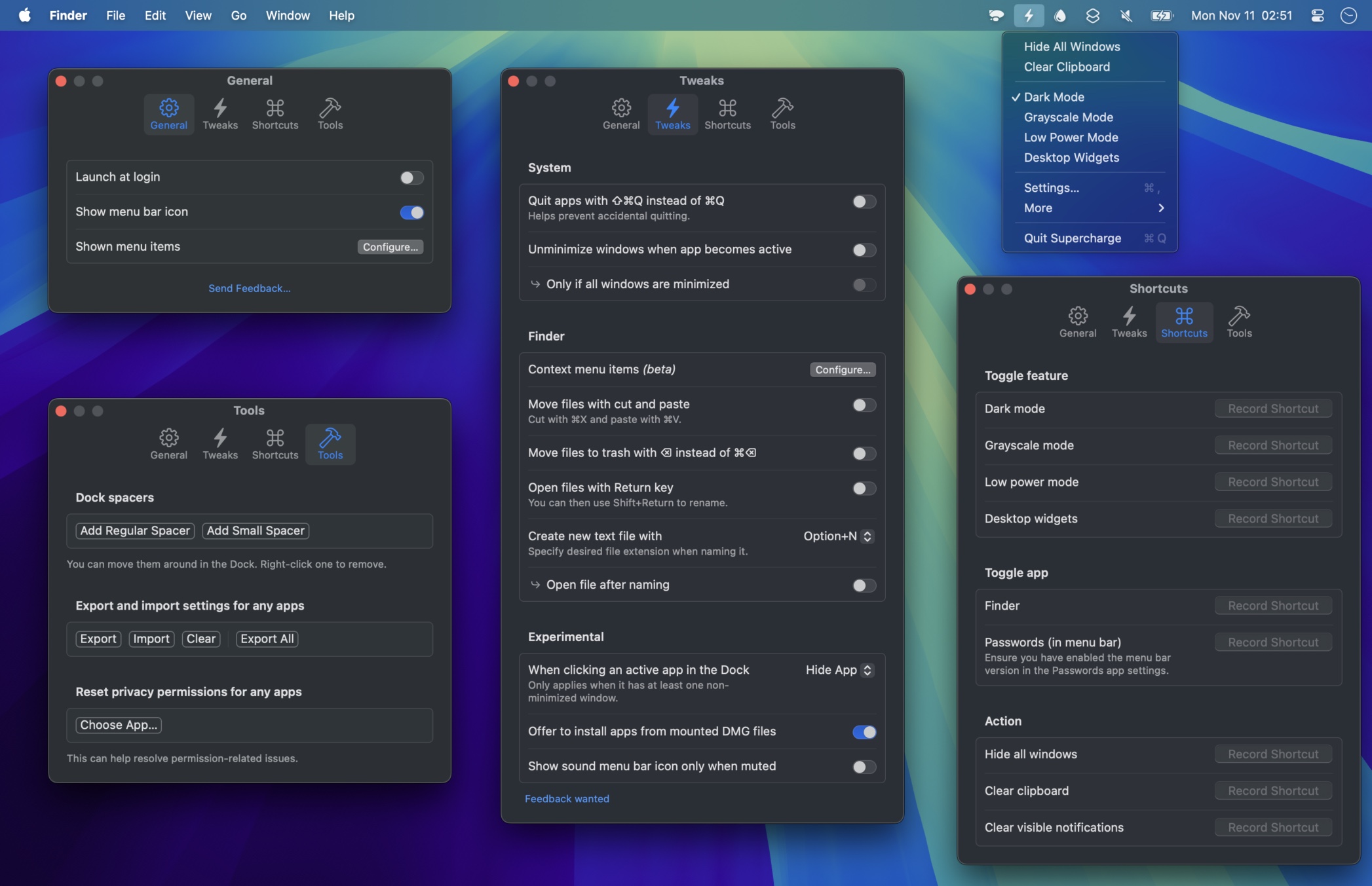
Improve your Mac experience with a bunch of useful functionality:
- Hide all windows (aka. boss mode)
- Show the menu bar window for the Passwords app with a keyboard shortcut
- Toggle Finder with a keyboard shortcut (aka. visor mode)
- Finder: Move files by cutting1 (Command+X) and pasting (Command+V)
- Finder: Open files with Return
- Finder: Create new text file with Option+N (video) or from the context menu
- Finder: Move files to the trash with ⌫ instead of ⌘⌫
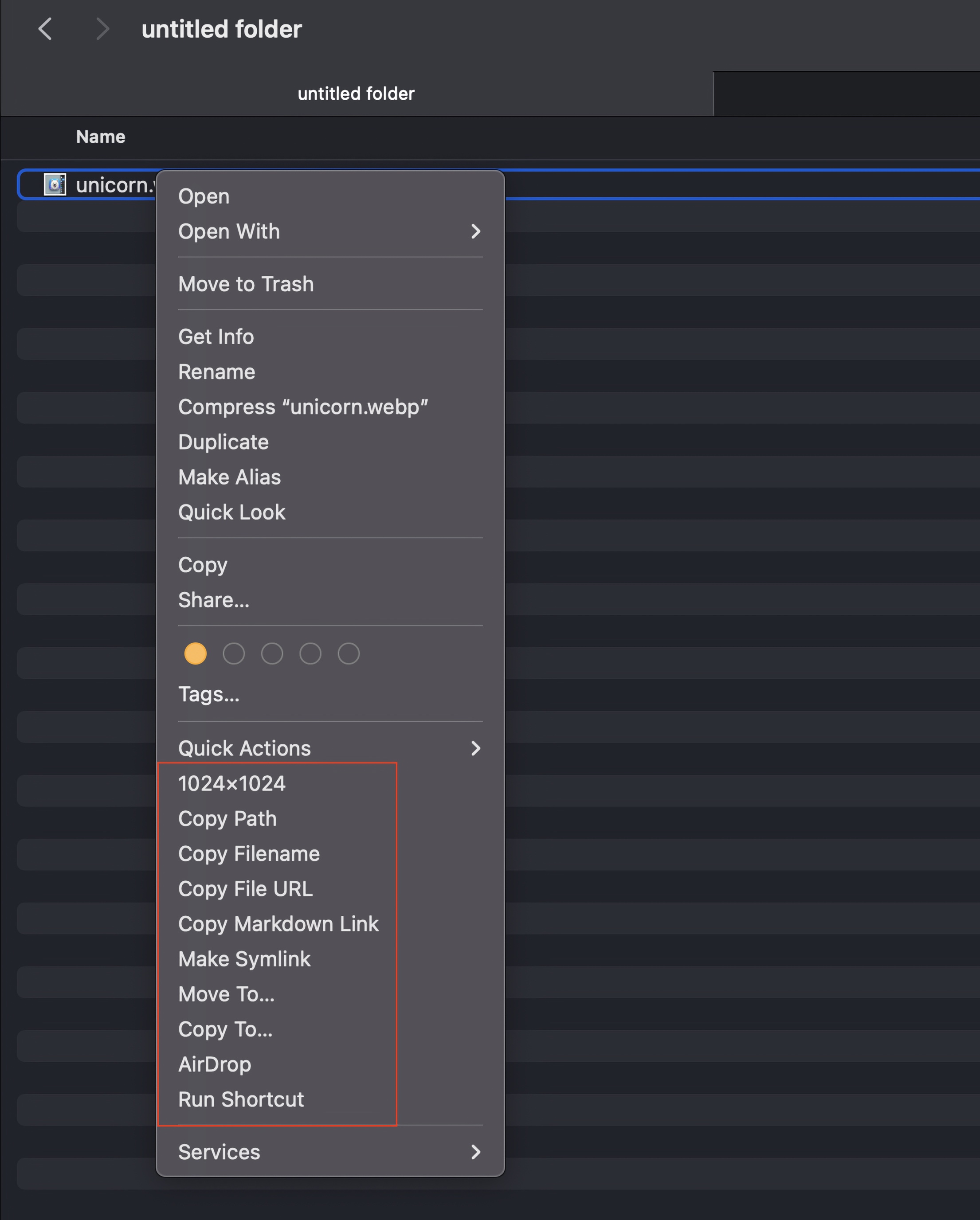
- Finder: Adds lots of useful actions to the context menu: copy path, move to, open folder with, AirDrop, etc.
- Mail: Copy message link
- Quit apps with ⇧⌘Q instead of ⌘Q to prevent accidental quitting2
- Clicking an active app’s Dock icon hides the app or minimizes its windows
- Unminimizes an app’s windows when activated (e.g., via Command+Tab)
- Export/import (backup) settings for any apps (video)
- Toggle Terminal with a keyboard shortcut
- Offers to install apps from mounted DMG files
- Only show system sound menu bar icon when muted
- Show desktop (from the menu bar menu)
- Toggle dark mode
- Toggle low power mode
- Toggle grayscale mode3
- Toggle desktop widgets visibility
- Clear visible notifications with a keyboard shortcut
- Clear clipboard
- Add Dock spacers
- Reset privacy permissions for any apps
- More planned…
This is my playground for supercharging macOS. It’s just the start. Come along for the ride.
Features explained
Dock icon click behavior
By default, clicking an app’s Dock icon when the app is active does nothing. With Supercharge, you can make it either hide the app or minimize all its windows. This can be particularly useful for quickly clearing your workspace.
Finder context menu additions
Adds the following actions (can be customized) directly in the right-click menu in Finder:
- New Text File
Shown only when right-clicking an empty area in Finder. - Image Dimensions
- Copy Path
- Copy Filename
- Copy File URL
Useful for deep links. Clicking such link reveals it in Finder. - Copy Markdown Link
- Open Folder With
- Make Symlink
- Move To
- Copy To
- Open in Terminal
Shown only when right-clicking a folder or an empty area in Finder. Supports Terminal, iTerm, kitty, WezTerm, and Warp. - AirDrop
- Run Shortcut
- Update Modified Date
- Make Executable
Makes files executable, similar tochmod +xin the terminal. Useful for shell scripts. - Invert Selection
Selects the files/folders in Finder that are not selected.
They appear at the bottom of the context menu. There is no way to change that. They also won’t appear in iCloud, Dropbox, or any other sync folder.
Copy message link in Mail
When you are in the Mail app, you can open the Supercharge menu to copy a direct link to one or more selected messages. This can be useful if you want to refer to specific emails in other contexts. The link will look like this: message://%3c66e85e1db33c7_961cfc499cd@lowworker-c6756b946-4rskj.mail%3e.
You may also like my Shareful, Menu Bar Spacing, and Pure Paste apps.
Trial
Try the fully functional trial here. The only limitation is a reminder to buy the app every 12 hours, and no automatic updates. All data and settings carry over if you buy it.
Requires macOS 15
Tips
Troubleshooting
- Ensure you are on the latest version (click the “Check for Updates” button).
- Restart your computer.
- Try closing any anti-virus app you have running as it may interfere with the app (or at least disable any Secure Keyboard Entry type setting it may have). And if you don’t have any anti-virus app, try closing down all apps and menu bar items, just to rule out some other app interfering. If it’s a work computer, your company may have something installed that prevents the app from working.
- Try clicking “Reset Permissions” in the Supercharge menu.
Cut and paste files troubleshooting
Ensure you pressed Command+X and not Command+C.
To make sure you used the app correctly. Try this: Select a file in Finder, press Command+X, change to a different folder, press Command+V. The file should have been moved to this new folder.
Note: You cannot cut, highlight a folder, and then paste. You have to actually go into the folder to paste to it. That’s just how Finder works. Same with copy-pasting.
Tricks
Some things you can already do that you may not know about:
- Hide an app by Option-clicking on the app’s Dock icon.
- Show Control Center by pressing Fn+C.
- Toggle a specific VPN using a keyboard shortcut with Shortcuts. Add this shortcut and set the VPN parameter and a keyboard shortcut.
- Make Finder remember its size and position.
- Prevent opening apps when clicking links that are Universal Links.
Frequently Asked Questions
I have a feature request, bug report, or some feedback
Click the feedback button in the app or send it here.
Some things are not possible though:
- Removing the Trash icon in the Dock.
- Removing the Finder icon in the Dock.
The app does not show up in the menu bar
macOS hides menu bar apps when there is no space left in the menu bar. This is a common problem on MacBooks with a notch. Try quitting some other menu bar apps to free up space. If this does not solve the issue, try quitting Bartender/Ice if you have it installed.
You may also have disabled the “Show menu bar icon” setting, which hides the menu bar icon. Launch the app again to show the main window.
I can already do this with the command-line, BetterTouchTool, Keyboard Maestro, etc.
Supercharge offers a simpler, more user-friendly approach. It’s designed for users who want quick access to useful features without the complexity of scripting or configuring advanced tools. Supercharge provides a curated set of enhancements that work right out of the box, saving you time and effort in setup and maintenance. If you prefer more granular control and don’t mind the setup process, those other tools might be a better fit for you.
Why Command+X? I can already move files with Command+C and Option+Command+V
- It’s more logical to cut & paste than copy & move.
- Consistency and muscle memory benefits if you also use Linux or Window.
What are Dock spacers?
Dock spacers are invisible gaps you can add to your Mac’s Dock. They help organize your apps into groups, improving visual clarity. Supercharge lets you easily add these spacers, giving you better control over your Dock’s layout.

Can I add custom actions to the app?
As of now, the app focuses on providing a curated set of built-in features for enhancing your Mac experience. I’m happy to consider requests.
Can you add a certain toggle?
I’m happy to consider requests, but I don’t intend for this app to turn into a “toggler” app. I have just provided some commonly needed toggles.
Some toggles I don’t plan to add:
- AirPods
- Keep awake (check out Lungo)
I cannot use Control+Space or Control+Shift+Space as a keyboard shortcut
Go to “System Settings › Keyboard › Keyboard Shortcuts › Input Sources” and disable them all.
Why would I want to clear my clipboard?
Clearing the clipboard helps protect privacy by removing potentially sensitive information (like passwords or personal data) that might otherwise remain available for pasting. Any app can silently read the clipboard. And you could also accidentally paste it somewhere you didn’t intend to.
Why don’t the Finder context menu items show up in iCloud and Dropbox folders?
Finder Sync extensions, which power these context menu items, are intended to add sync functionality for third-party services in Finder. Since iCloud and Dropbox folders have their own built-in sync, macOS don’t allow the Supercharge extension in these locations to prevent conflicts.
Why is this not in the App Store?
Much of the functionality would not be possible in the App Store because of sandboxing.
Can this app be available on Setapp?
Setapp curates apps based on demand, so if you’d like to see this app on Setapp, email them and request its inclusion.
More FAQs…
Footnotes
-
Without this feature, you have to first copy (Command+C) and then remember to move (Option+Command+V). The feature works by overriding the normal cut ⌘X keyboard shortcut when Finder is active and executes a copy ⌘C instead. When you then paste ⌘V, it executes the native move ⌥⌘V keyboard shortcut. So really, it’s Finder moving the files. This app just makes the keyboard shortcuts more intuitive. If you don’t paste, the files just stay in place. This feature also works with the Forklift app. ↩
-
The Q key is next to W, making it easy to accidentally hit Command+Q (quit) when reaching for Command+W (close window). ↩
-
Grayscale mode on macOS can be a useful tool for various purposes. It can help reduce eye strain during long work sessions, especially in low-light environments. For designers and developers, it’s valuable for checking contrast and readability of user interfaces without the influence of color. Content creators may use it to evaluate the tonal balance of images or videos. Additionally, some users find that grayscale helps minimize distractions and improve focus by reducing the visual appeal of non-work-related apps and websites. While initially an adjustment, many users report increased productivity and a more mindful approach to computer usage when employing grayscale mode periodically. ↩